Open the patient's chart note.
Click the  button in the chart note.
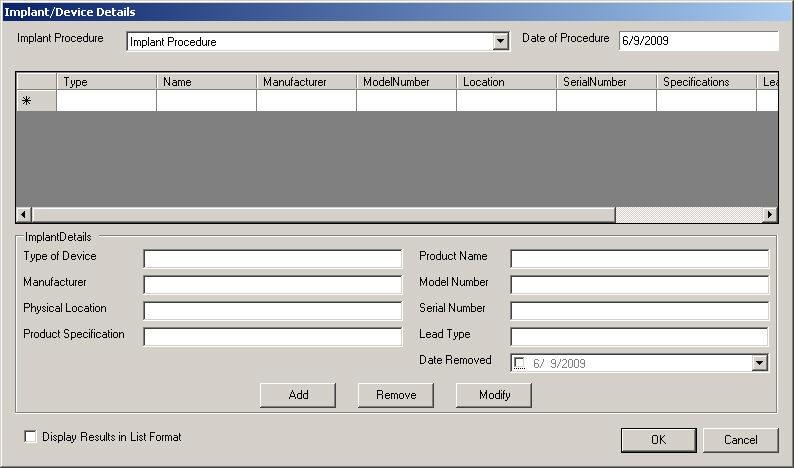
The Implant/Device Details dialog will appear.
button in the chart note.
The Implant/Device Details dialog will appear.
Select the Implant
Procedure that you want to enter Implant Details information for..
In the Implant Details section, enter the applicable
Type of Device, Manufacturer,
Physical Location, Product
Specification, Product Name,
Model Number, Serial
Number, Lead Type, and
Date Removed as needed in the
corresponding fields.
Click the Add
button to activate the Implant/Device information. Click the * Row and
repeat step 4 to add another implant or device. Highlight an Implant/Device
item in the Implant/Device list, and then click the Modify
button to make any changes to an existing implant or device. Highlight
an Implant/Device item in the Implant/Device list, and then click the
Remove button to delete an existing
implant or device.
Check the Display
results in list format box if you want the Implant information
to appear as a list instead of in paragraph format.
When finished, click the OK
button and the Implant/Device Details will appear in the chart note.