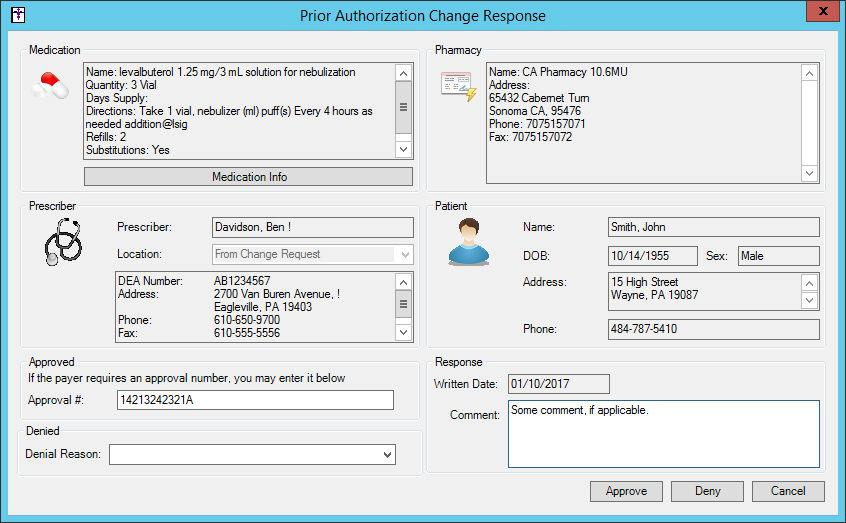
When a pharmacy sends a prescription change request,
and the system is unable to match that request to an existing patient,
a To-Do List message will populate the user’s To-Do List with a Subject of Electronic Prescription: Unmatched
Change Request. Double-click this message; or highlight this message,
and then click the View button.
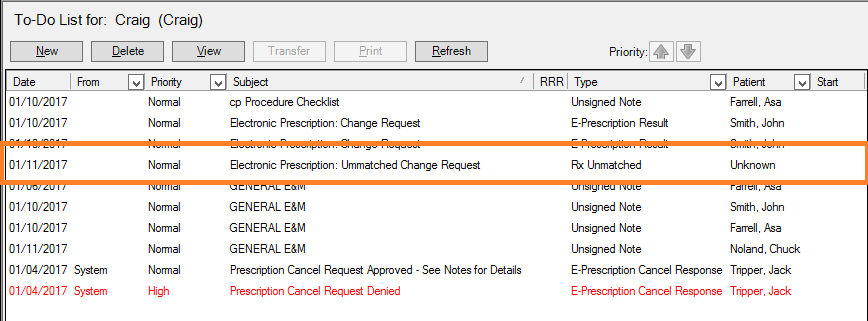
A Match Change Request dialog will appear allowing
you to deny the request, or to match that request with an existing patient.
In the Change Request Information section of the Match Change Request
dialog, the patient, medication, pharmacy, and prescriber will be listed
for the unmatched patient sent from the pharmacy.
To deny this request, select a Denial
Reason, or enter a Comment for why the request is denied, and then
click the Deny Request button.
The system will then send the denial to the pharmacy and the process will
be completed.
To match this information to an existing patient in the system, you
can search for the patient in the Select
Patient field, highlight the applicable patient in the list, and
then in the Select Patient Medication section, highlight that patient’s
medication that you want to match the request to, and then click Match button.
Once the unmatched change request has been matched
to an existing patient, you can access the patient’s chart and the medication
will be highlighted and a [CHANGE] prefix will be attached in the patient’s
facesheet. You can process the change request in a similar manner as a
general change request or prior authorization change request outlined
below.
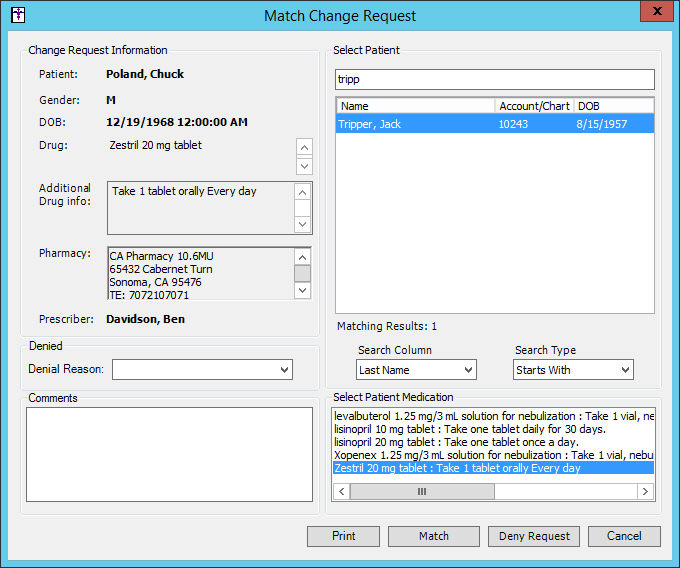
Once the unmatched change request has been matched
to an existing patient, can access the matched patient’s chart and the
medication will be highlighted and a [CHANGE]
prefix will be attached in the patient’s facesheet. To begin processing
the change request, click the asterisk (*)
button next to the medication in the Medication List of the patient’s
facesheet, and select the Process Change
Request option.
If the change request is a general change request,
a General Change Response dialog
will appear that allows you toggle between the original prescribed medication
(indicated by a [Original Medication]
prefix) and the requested changes, as well as search and select a different
medication via the Other... button.
When the original mediation is selected, you can review the medication
information, prescriber information, Patient demographics, and pharmacy
information.
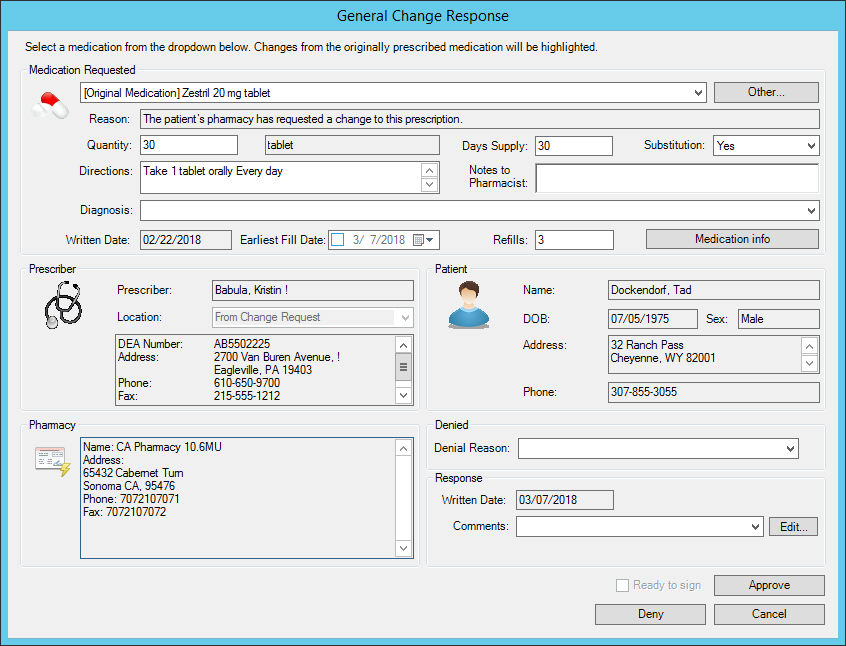
Click the initial Medication Requested
drop-down list to toggle between the original medication and the requested
changes, or click the Other...
button to search for and select a different medication than the original
or requested medication.
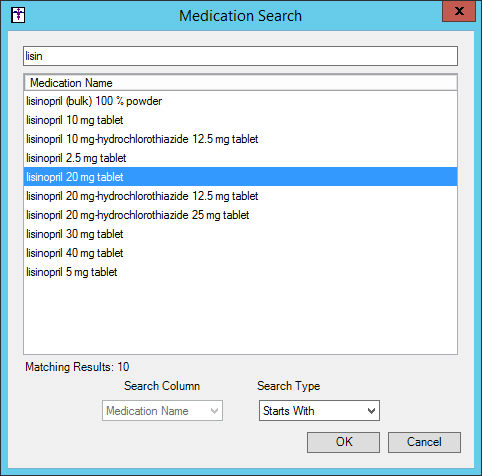
If you click the Other... button,
a Medication Search dialog will appear, allowing you to search for and
select a different medication. Once the desired medication has been located,
highlight it, and then click the OK
button. That medication will then appear selected in the drop-down list.
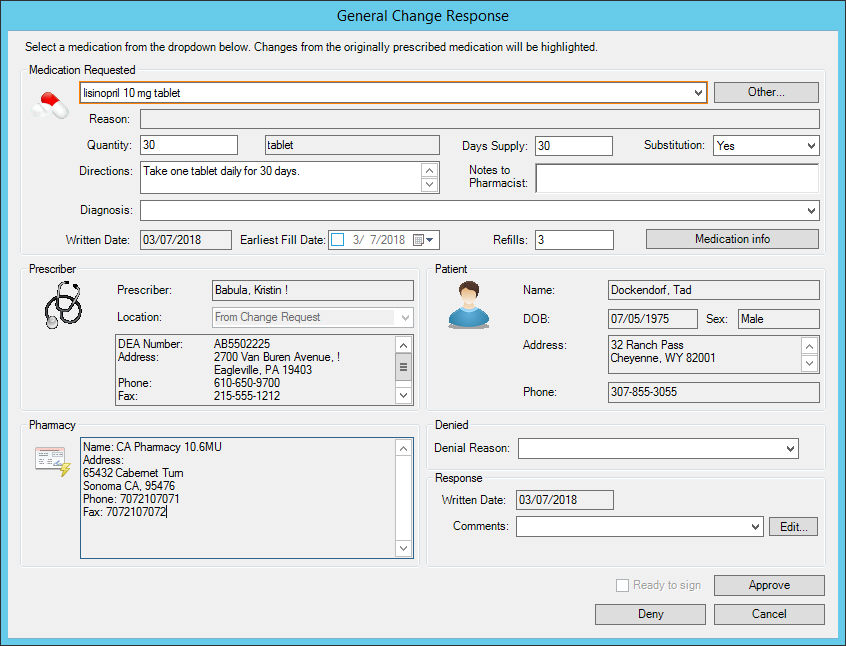
After you toggle the medication in the initial medication drop-down
list, or searched for and selected a medication via the Other... button,
any changes will be highlighted in the applicable fields where changes
are taking place. If the actual medication is different from the original
medication prescribed, then the medication itself will become highlighted.
You have the ability to add or modify the Quantity,
Days Supply, Substitution,
Directions, Notes
to Pharmacist, Diagnosis,
Effective Date, and Refills
for the medication, as well as viewing medication information via the
Medication info button.
To approve the change request, and send any modified changes in the
Medication Requested section, you can enter a Comment,
if applicable, and then click the Approve
button.
NOTE: When a change response involves a controlled substance, the various
EPCS warnings and signing protocols will be activated, similar to electronically
prescribing a controlled substance. You will be required to check the
Ready to sign option, insert the
IdenTrust USB token, as well as enter your token passcode prior to being
able to approve the request.
To deny the change request, select a Denial
Reason or enter a Comment
as to why the request is being denied, and then click the Deny
button.
Once the request has been approved or denied, the response will then
be sent to the pharmacy.
If the change request was approved, the system will automatically discontinue
the original mediation and generate a new medication drug log comprised
of the changes, while also updating the patient’s facesheet. Likewise,
applicable changes will be made in the History tab and the Audit Trail.
If the change request was denied, the system will generate a drug log
that will include the patient’s name, account number, date of birth, sex,
the denied medication information, the denied reason, any comments, and
the user who denied the request.
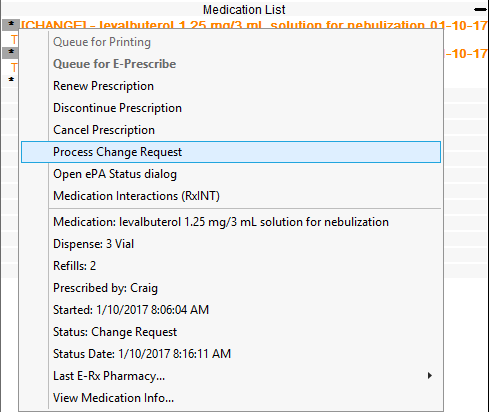
If the change request is a prior authorization
change request, a Prior Authorization
Change Request dialog will appear. In the Prior Authorization Change
Response dialog, you can review the medication information, pharmacy information,
prescriber information, and patient demographics.
To approve the change request, you can enter an Approval
Number in the Approval # field, if applicable, enter a Comment,
if needed, and
then click the Approve button.
To deny the change request, select a Denial
Reason or enter a Comment
as to why the request is being denied, and then click the Deny
button.
Once the request has been approved or denied, the response will then
be sent to the pharmacy.
If the change request was approved, the system will generate a medication
drug log comprised of the changes, while also updating the patient’s facesheet.
Likewise, applicable changes will be made in the History tab and Audit
Trail.
If the change request was denied, the system will generate a drug log
that will include the patient’s name, account number, date of birth, sex,
the denied medication information, the denied reason, any comments, and
the user who denied the request.